
Support Resources
- Complete form for support from Carey Learning Technology Group (CTG)
(Monday–Friday, 8:00 a.m.–5:00 p.m. ET)- Canvas support
- LTI support
- Complete form for support from the Multimedia team
- My Media
- Email [email protected] with any questions
- Reach out to [email protected]
- For topics unsure about where to reach
- Support for students
- Grade policy
- Inside Carey
- Email questions to [email protected]
Teaching & Learning supports many learning technologies and has provided a collection of articles and resources to assist instructors.
As you access these guides, please remember the most important rule to implementing new tools is that they serve a purpose or support students in reaching course learning objectives.
If you would like to discuss how to best incorporate a tool into your facilitation process, have a question about what tool might best serve a particular goal, or have a question that these resources do not address, please contact Teaching & Learning at [email protected].
Teaching with Canvas
In 2022, Johns Hopkins University transitioned from the Blackboard Learn learning management system (LMS) to Canvas.
In May 2023, Blackboard access was sunset, so our team does not have any real way to recover materials that were not saved locally or migrated.
Canvas, like all learning management systems (LMSes), is not a one-size-fits-all solution for learning, and sometimes other technologies need to be incorporated. It is best to think of Canvas (like Blackboard before it) as a hub or jumping-off point for learning, student resources, and course content.
Information to get you started:
In order to sign into Canvas, you will need to do the following:
- Access Canvas at canvas.jhu.edu.
Select JHU Login.
Image
Continue through the JHU Single Sign On process, logging in with your JHED ID.
Image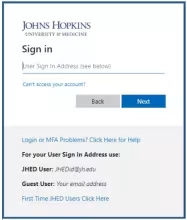
After successfully signing in, your Canvas Dashboard will appear.
Image
When a course is created by SIS, it is made Unpublished by default. Once you have added any additional users and materials to your course, you will need to make it available by doing the following:
- Access your course.
You can see the publication status of your course in the Course Status options.
Image
Publish your course by selecting Publish.
Image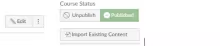
- Your course will then be available to students. Although you can unpublish courses, it is best to make sure that your course is in the desired format to avoid confusion.
Carey asks that instructors open their courses to students 2 weeks prior to the term start. (Note: Not all materials need to be available to students at that time.)
You and your students will be automatically enrolled into your course through SIS; however, teaching assistants (TAs) and other members of the course must be manually added to courses.
- Access your course and navigate to the People page.
Select the + People button.
Image
Enter the email address of the user you would like to add, select the correct role, and choose Next. If you are adding more than one user, enter a comma between each address.
Image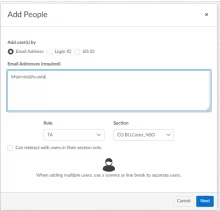
- Once Canvas finds the users, it will confirm that you may add them to your course. Select Add Users to confirm their addition to your course.

If someone needs access to the course in the Teacher or the Student role, this must be done through SIS. Please consult the list of Canvas roles for information about the different roles and what might work.
The Johns Hopkins University migration team has developed a series of guides for instructors and TAs. More information, including how to copy a course from a prior (or concurrent) Canvas section, can be found in the Getting Started for Faculty guide.
Setting up your course
Announcements are a great way to communicate with students while also creating an artifact that students can access later. To post an announcement:
Navigate to your course and access the Announcements page.
Image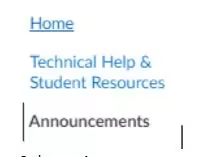
Select +Announcement.
Image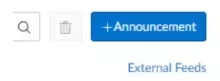
Give the topic a title, and input your announcement.
Image
You may delay the posting until a certain date, or not select this and instead select Publish to immediately post the announcement.
Image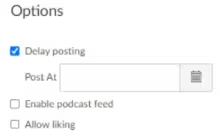
- Depending on your students’ notification settings, this announcement will be sent to their email. There is no way to force-send the announcement, but this is the default setting.
Over the course of the term, you will likely need to share information with students. This can be done with a Canvas page. To create a Canvas page:
Navigate to your course and access the Modules page.
Image
- Find the module in which you would like to place the content.
If you have not created a module, you will need to do this first.
Image
Select the Add Item button (the plus sign).
Image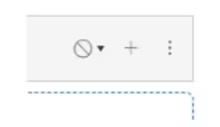
- Select Page from the Add drop-down menu.
- Select Create Page and give it a title.
If you had previously created a page, you may select that and proceed.
Image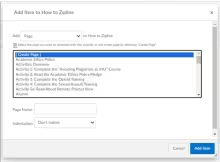
- Select Add Item.
Provide the content you would like to add to this page. You may add multimedia or any other materials you choose.
Image
Select Save or Save & Publish.
Image
If you do not publish the material now, you can do it later by selecting the Publish checkmark.
Image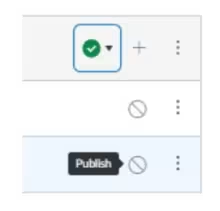
You may wish to have students submit assignments through Canvas. This allows organized collection of materials and will allow you to use the Canvas grade center. To create an assignment:
Navigate to your course and access the Modules page.
Image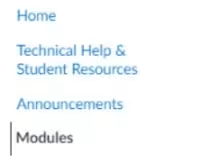
Find the module in which you would like to place the content.
If you have not created a module, you will need to do this first.
Image
Select the Add Item button (the plus sign).
Image
- Select Assignment from the Add drop-down menu.
Select Create Assignment and give it a title.
If you had previously created an assignment, you may select that and proceed.
Image
- Select Add Item.
Provide the content you would like to add to this assignment page. You may add multimedia or any other materials you choose.
Image
Provide any of the assignment details, including due date and point totals.
Image
Select Save or Save & Publish.
Image
If you do not publish the material now, you can do it later by selecting the Publish checkmark. Make sure the module is published. If it is not, you will need to do so before this content is visible to students.
Image
More information for getting a little more involved in the Canvas environment, including how to manage your course due dates and run a SIS grade import, can be found in the Setting Up Your Course Canvas guide.
Gradebooks in Canvas are slightly different from those in Blackboard, so it is important to familiarize yourself with how this tool works.
Accommodations or Altering Due Dates/Times
This guide cannot be found in the JHU Canvas guides, but is important nonetheless. Students may require extra time or other considerations during assignments or quizzes.
This page contains general information about Canvas, such as:
- Communicating with students
- Updating your chosen name and pronouns
- Managing other settings
Do you have any specific questions?
Schedule a 1:1 training with Teaching & Learning!
Video resources
Signing in for the First Time
- To sign in for the first time, go to https://jhucarey.zoom.us/ and select the Sign In button. Next, download the latest desktop application and use Single Sign On (SSO) to log in with your JHED ID. Enter jhucarey as the company/organization name.
- Receiving Licensed Zoom Account
- If you need to upgrade your Carey basic Zoom account to Licensed (formerly Pro) level, please contact [email protected].
- Breakout rooms and polling
- Zoom recordings
- Instructors may record videos or images of their classes because student(s) attending passively online are requested, but not required, to turn their cameras on.
- Contact: Philippe Homassel at [email protected].
My Media is a cloud-based video management system for storing, publishing, and streaming videos and other media within a secure campus environment for faculty and students. This platform integrates with Canvas in My Media, allowing faculty and students to easily create, upload, and share multimedia content in their courses.
- Getting Started, Recommended Uses and FAQs
- Why Use My Media Video over uploading other recording options?
- Integrated with Canvas, allowing you to record a lesson, audio, presentation, or screencast using your webcam and/or screen/slides.
- There is no limit on My Media’s file space, whereas file space for each Canvas course is limited.
- By using My Media, faculty and students can either record new media or upload existing media from their My Media space.
- Basic editing tools including trim, slice, adding thumbnails, and editing transcripts.
- Auto-captioning and editing tools to reach standard accuracy and a searchable transcript feature.
- Prevents users outside of Canvas from viewing your videos.
- Media stored on My Media’s file server can stream effectively at various internet speeds.
Proctoring Tools
Beginning Fall I 2025, Honorlock, an online remote proctoring solution, will be available for use in online courses. Honorlock will replace Remote Proctor Now (RPNow).
- Used for assessments on online courses only
- Proctors and restricts access to other platforms while students take their assessments
- Can customize the exam experience through allowing or limiting the following:
- Applications: Word, Excel, PowerPoint, and Outlook
- Web Browsing: All sites or specific websites
- Reference Materials: Notes, pen, paper, calculator, and textbook
- Used for assessments on online courses
- The platform can record video and restrict access to other platforms while students take the assessment.
- RPNow can generate exam profiles that can allow the following:
- Applications: Word, Excel, PowerPoint, and Outlook
- Web browsing: All sites or specific websites
- Reference materials: Notes, pen, paper, calculator, and textbook
- Setup Process
- Complete the CTG form to discuss assessment requirements.
- The assessment will be synced to RPNow within 2–3 business days.
- Additional changes or edits to the assessment can be made by completing the CTG form.
- Used for assessments for on-site courses
- The platform can restrict access to other platforms while students take the assessment.
- The platform does not record video while students are taking the assessment.
- Respondus can generate exam profiles that can allow the following:
- Allow students to take exam with iPad
- Allow access to specific websites
- Enable Calculator on toolbar
- Enable Printing from toolbar
- Setup Process
Proctoring isn't always going to give the most genuine assessment of learning outcomes. If you’re interested in alternatives to proctoring, please schedule a 1:1 at [email protected] for additional information.
Academic Integrity
Turnitin is a plagiarism detection tool. By design, this tool compares student submissions against a vast database that includes academic papers, websites, books, and other sources to identify potential unoriginal content.
Key points for faculty:
- The Similarity Score: The Similarity Score does not definitively indicate plagiarism. It only identifies text that matches with other sources. Faculty should review these matches to determine whether it constitutes plagiarism or is a correctly cited source.
For more detailed understanding and resources, please visit the Turnitin User Help Page.
Receiving a problematic RPNow Report indicates that there might have been some issues or violations during an online proctored exam.
Here are the next steps faculty should take:
- Review the Report: The report will detail the problem, which could range from technical glitches to potential academic misconduct. Reports can be accessed through the Faculty Registration Page in the course modules section.
- Take Appropriate Action: Depending on your findings and the severity of the violation, decide on the appropriate course of action. This could include reaching out to the student to give a warning, deducting points, failing the student for the exam, or escalating the issue to the Academic Ethics Committee.
- Review Exam Procedures: If the issue was related to the proctoring system itself, consider reviewing the procedures or providing additional instructions to prevent future issues. You can contact Teaching & Learning staff to discuss changes to the exam profile or other test settings.
The Whiting School of Engineering has created an AI resources webpage, which we recommend reviewing if you are curious about generative AI.
For any questions about Carey’s AI policy, faculty can reach out to the Office of Student Affairs at [email protected] with any general questions about academic integrity.
For more information about next steps should you suspect academic dishonesty, please refer to the Academic Ethics Policy.